This article goes over the steps to install Anbox on Linux Mint. Ever wondered how cool it would be to be able to run android applications on your Linux system? Well, Anbox helps you do exactly that.
Anbox is short for Android in a box and it is exactly what it sounds like! Anbox is a free and open-source environment that enables you to run Android applications on your Linux distribution.
It follows a container-based approach to run the android operating system on Linux.
Steps to Install Anbox on Linux Mint
Here’s a quick summary of the step to install Anbox on your Linux Mint:
- First, Install snapd
- Install the required kernel modules
- Install the Anbox package on Linux Mint
Matching infrastructure at centron
No hardware needed to follow along: ccloud³ VMs with full root access start at €3.12 per month, billed by the hour and ready in seconds. Rent a cloud server →
Steps to Uninstall Anbox from Mint
You can install Anbox on your system from the Snap Store. As of now, Snap is the only way to get Anbox. The organization does not officially support any other distribution method of Anbox at the moment.
In case you haven’t heard about Snaps, don’t worry. Snaps are just software packages that are simple to create and install.
1. Install Snap
Snap is available for the following releases of Mint :
- 18.2 (Sonya)
- 18.3 (Sylvia)
- 19 (Tara)
- 19.1 (Tessa)
- 20 (Ulyana)
To install Snap on Linux Mint 20, you need to remove /etc/apt/preferences.d/nosnap.pref first. The reason being, this file blocks the installation of snap.
This is done with the command :
sudo rm /etc/apt/preferences.d/nosnap.pref
sudo apt update
To install snapd on your system use the apt command as shown below:
$ sudo apt install snapdAlternatively, you can download it from the Software Manager application. Search for snapd and click Install.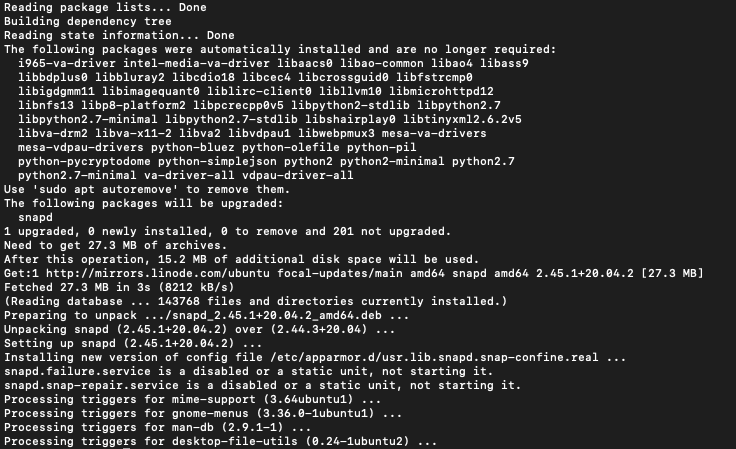
2. Install Kernel Modules
Before installing Anbox, you need to install two kernel modules. This is necessary to support the mandatory kernel subsystems ashmem and binder for the Android container.
You can do this with the following commands:
sudo add-apt-repository ppa:morphis/anbox-support
sudo apt update
sudo apt install linux-headers-generic anbox-modules-dkms
This will install anbox-modules-dkms package on your system.
After this, you need to manually load the kernel modules. This loading is a one-time thing. You can do this with the following commands:
sudo modprobe ashmem_linux
sudo modprobe binder_linux
This will add two new nodes in your system:
- /dev/ashmen
- /dev/binder
3. Install Anbox on Linux Mint
Now after installing Snaps and the necessary modules on your system, you can install Anbox on your system using :
sudo snap install --devmode --beta anboxTo update to a newer version use the command:
sudo snap refresh --beta --devmode anboxTo get information about the Anbox snap use the command:
snap info anbox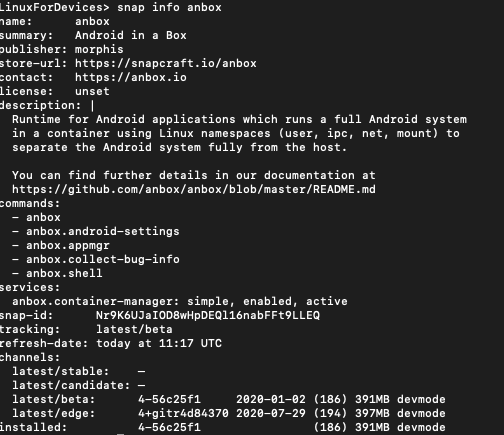 4. Steps to Uninstall Anbox
If you need to uninstall Anbox, use the command :
$ snap remove anboxAfter uninstalling Anbox, you can also uninstall the kernel modules using :
$ sudo apt install ppa-purge
$ sudo ppa-purge ppa:morphis/anbox-support
Running these commands will successfully uninstall Anbox from your system.
Conclusion
In this tutorial, you saw how to install Anbox on your Linux Mint system.
Testen Sie Ihr Setup auf ccloud³
Registrieren Sie sich in der ccloud³ und erhalten Sie 200 € Startguthaben für Ihr Projekt – z. B. für eine PostgreSQL-VM mit automatischen Backups.