Introduction
In this article, you will learn how to send emails in Linux using the mail commands. It’s equally important that you also learn how to send Linux email attachments. Some of the command line options used are:
- -s: denotes the mail’s subject
- -a: for denoting attachment
- -c: for the copy email address (CC)
- -b: for the blind copy email address (BCC)
We will learn about following commands to send emails in Linux.
- mailx
- mutt
- mpack
- sendmail
Matching infrastructure at centron
No hardware needed to follow along: ccloud³ VMs with full root access start at €3.12 per month, billed by the hour and ready in seconds. Rent a cloud server →
1. Using mail Command
Linux mail command is quite popular and is commonly used to send emails from the command line. Mail is installed as part of mailutils and mailx packages on Debian and Redhat systems respectively. The two commands process messages on the command line. To install mailutils in Debian and Ubuntu Systems, run:
$ sudo apt install mailutils -yFor CentOS and RedHat distributions, run:
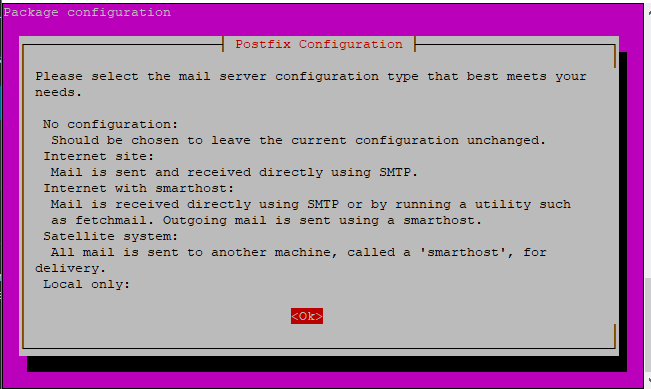
$ yum install mailxWhen you run the command, the following window will pop up. Press the TAB button and hit on ‘OK’
In the next Window, scroll and hit ‘Internet Site’.
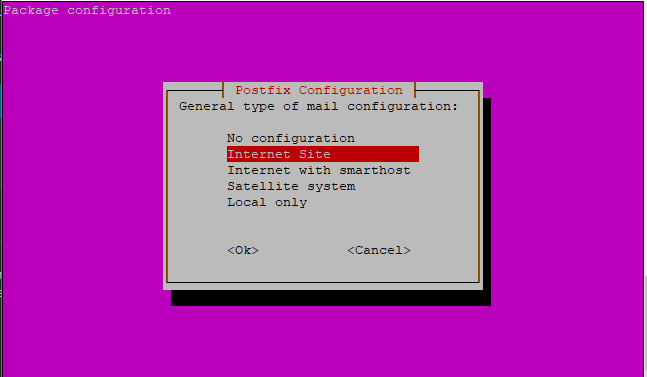
The system will thereafter finish up with the installation process.
Testing Mail command
If the mail command is successfully installed, test the application by using the following format and press enter:
$ mail –s "Test Email" email_addressReplace email_address with your email address. For example,
$ mail –s "Test Email" james@example.comAfter pressing “Enter”, you’ll be prompted for a Carbon Copy (Cc:) address. If you wish not to include a copied address, proceed and hit ENTER. Next, type the message or the body of the Email and hit ENTER. Finally, Press Ctrl + D simultaneously to send the Email in Linux.

Output:
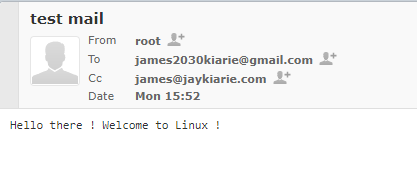
Alternatively, you can use the echo command to pipe the message you want to send to the mail command as shown below.
$ echo "sample message" | mail -s "sample mail subject" email_addressFor example,
$ echo "Hello world" | mail -s "Test" james@example.comOutput:
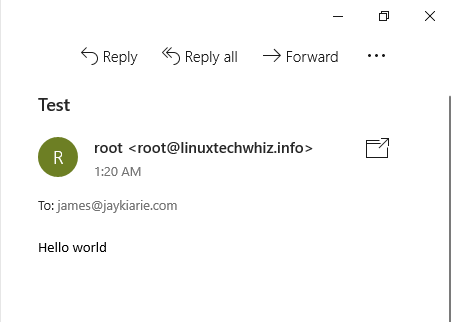
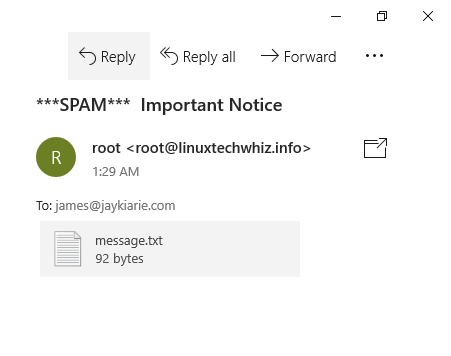
Let’s assume you have a file that you want to attach. Let’s call the file message.txt How do you go about it? Use the command below.
$ mail -s "subject" -A message.txt email_addressThe -A flag defines attachment of the file. For example;
$ mail -s "Important Notice" -A message.txt james@example.com
Output:
To send an email in Linux to many recipients run:
$ mail –s "test header" email_address email_address22. Using the mailx command
Mailx is the newer version of mail command and was formerly referred to as nail in other implementations. Mailx has been around since 1986 and was incorporated into POSIX in the year 1992. Mailx is part of the Debian’s mail compound package used for various scenarios. Users, system administrators, and developers can use this mail utility. The implementation of mailx also takes the same form as the mail command line syntax. To install mailx in Debian/Ubuntu Systems run:
$ sudo apt install mailxTo install mailx in RedHat & CentOS run:
$ yum install mailxTesting Mailx command
You may use the echo command to direct the output to the mail command without being prompted for CC and the message body as shown here:
$ echo "message body" | mail -s "subject" email_addressFor example,
$ echo "Make the most out of Linux!" | mail -s "Welcome to Linux" james@example.com3. Using the MUTT Command
Mutt is a lightweight Linux command line email client. Unlike the mail command that can do basic stuff, mutt can send file attachments. Mutt also reads emails from POP/IMAP servers and connecting local users via the terminal. To install mutt in Debian / Ubuntu Systems run:
$ sudo apt install muttTo install mutt in Redhat / CentOS Systems run:
$ sudo yum install muttTesting Mutt command
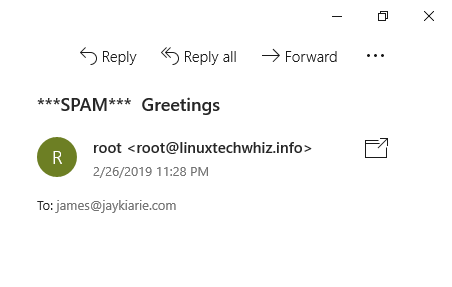
You can send a blank message using mutt with the < /dev/null right after the email address.
$ mutt -s "Test Email" email_address < /dev/nullFor example,
$ mutt -s "Greetings" james@example.com < /dev/nullOutput:
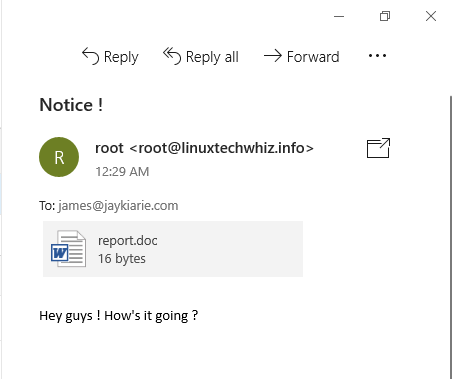
Mutt command can also be used to attach a file as follows.
$ echo "Message body" | mutt -a "/path/to/file.to.attach" -s "subject of message" -- email_addressFor example,
$ echo "Hey guys! How's it going ?" | mutt -a report.doc -s "Notice !" -- james@jaykiarie.com
Output:
4. Using mpack Command
The mpack command is used to encode the file into MIME messages and sends them to one or several recipients, or it can even be used to post to different newsgroups. To install mpack in Debian / Ubuntu Systems run:
$ sudo apt install mpackTo install mpack in Redhat / CentOS Systems run:
$ sudo yum install mpackTesting mpack command
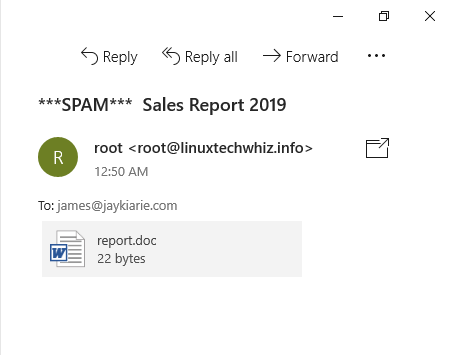
Using mpack to send email in Linux or attachment via command line is as simple as:
$ mpack -s "Subject here" -a file email_addressFor example,
$ mpack -s "Sales Report 2019" -a report.doc james@jaykiarie.com
Output:
5. Using sendmail
This command is another popular SMTP server used in many distributions. To install sendmail in Debian/ Ubuntu Systems run:
$ sudo apt install sendmailTo install sendmail in RedHat / CentOS Systems run:
$ sudo yum install sendmailTesting sendmail command
You can use the following instructions to send email in Linux using the sendmail command:
$ sendmail email_address < fileFor example, I have created a file report.doc with the following text:
Hello there !The command for sending the message will be,
$ sendmail < report.doc james@example.comOutput:
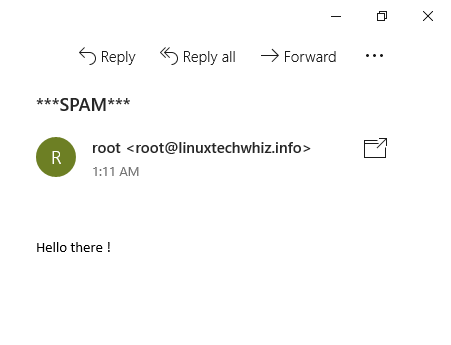
You can use -s option to specify the email subject.
Summary
While the command line emails clients are a lot simpler and less computationally intensive, you can only use them to send emails in Linux to personal email domains and not to Gmail or Yahoo domains because of extra authentication required. Also, you cannot receive emails from external SMTP servers. Generally, it’s a lot easier if you use GUI email clients like Thunderbird or Evolution to avoid undelivered emails problem.
Testen Sie Ihr Setup auf ccloud³
Registrieren Sie sich in der ccloud³ und erhalten Sie 200 € Startguthaben für Ihr Projekt – z. B. für eine PostgreSQL-VM mit automatischen Backups.