NodeJS is a JavaScript framework that allows you to build fast network applications with ease. In this guide, we delve in and see how you can install NodeJS on Ubuntu 18.04.
Step 1: Adding the NodeJS PPA to Ubuntu 18.04
To start off, add the NodeJS PPA to your system using the following commands.
sudo apt-get install software-properties-commonSample Output
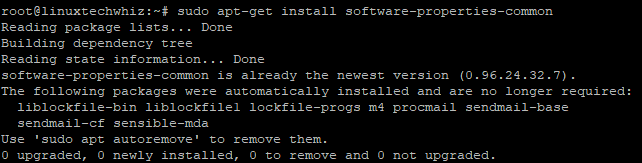
Next, add the NodeJS PPA.
curl -sL https://deb.nodesource.com/setup_11.x | sudo -E bash -Sample Output
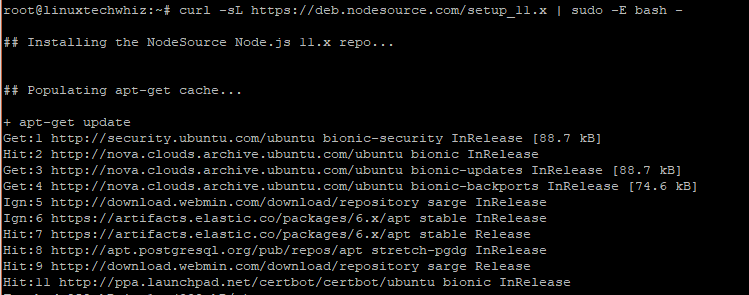 Great! In our next step, we are going to run the command for installing NodeJS.
Matching infrastructure at centron
Ubuntu servers without your own hardware: ccloud³ VMs with full root access from €3.12 per month, billed by the hour and ready in seconds. Rent a cloud server →
Step 2: Install NodeJS on Ubuntu 18.04
After successfully adding the NodeJS PPA, It’s time now to install NodeJS using the command below.
sudo apt-get install nodejsSample Output
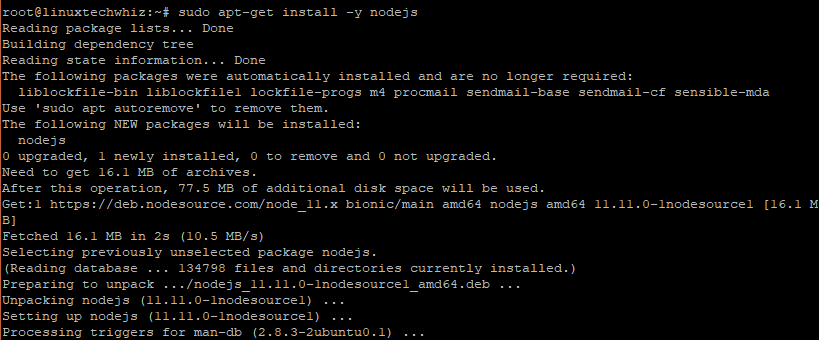 This command not only installs NodeJS but also NPM (NodeJS Package Manager) and other dependencies as well.
Step 3: Verfiying the version of NodeJS and NPM
After successful installation of NodeJS, you can test the version of NodeJS using the simple command below.
node -vSample Output
 For NPM, run
npm -vSample Output
Step 4: Creating a Web Server demonstration
This is an optional step that you can use to test if NodeJS is working as intended. We are going to create a web server that displays the text “Congratulations! node.JS has successfully been installed !”
Let’s create a NodeJS file and call it nodeapp.js
vim nodeapp.jsAdd the following content
var http = require('http');
http.createServer(function (req, res) {
  res.writeHead(200, {'Content-Type': 'text/plain'});
  res.end('Congratulations! node.JS has successfully been installed !\n');
}).listen(3000, "server-ip");
console.log('Server running at https://server-ip:3000/');
Save and exit the text editor
Start the application using the command below
node nodeapp.jsSample Output
 This will display the content of the application on port 3000. Ensure the port is allowed on the firewall of your system.
ufw allow 3000/tcp
ufw reload
Now open your browser and browse the server’s address as shown
https://server-ip:3000Uninstall NodeJS from Ubuntu
If you wish to uninstall NodeJS from your Ubuntu system, run the command below.
sudo apt-get remove nodejsThe command will remove the package but retain the configuration files. To remove both the package and the configuration files run:
sudo apt-get purge nodejsAs a final step, you can run the command below to remove any unused files and free up the disk space
sudo apt-get autoremoveGreat! We have successfully installed and tested the installation of NodeJS. We also learned how to uninstall NodeJS from Ubuntu and clean up space.
Testen Sie Ihr Setup auf ccloud³
Registrieren Sie sich in der ccloud³ und erhalten Sie 200 € Startguthaben für Ihr Projekt – z. B. für eine PostgreSQL-VM mit automatischen Backups.