When we configure maven-surefire-plugin to run our JUnit tests, it generates surefire-reports directory. This directory contains a txt file and an XML file for every test class. However, reading these files is not easy and it’s also not easily explainable to a non-techie person.
Generating HTML Reports for JUnit Tests
We can use maven-surefire-report-plugin plugin to generate HTML based reports for our JUnit tests. This report can be exported and shared with the team. It’s also an easy way to understand how your tests went through, especially when you integrate them with CI tools like Jenkins. There are two steps to generate JUnit HTML report from our maven project.
Add maven-surefire-report-plugin to pom.xml reporting element.
<reporting>
	<plugins>
		<plugin>
			<groupId>org.apache.maven.plugins</groupId>
			<artifactId>maven-surefire-report-plugin</artifactId>
			<version>2.22.0</version>
		</plugin>
	</plugins>
</reporting>
Run mvn site command from the terminal. It will generate HTML reports in target/site directory.
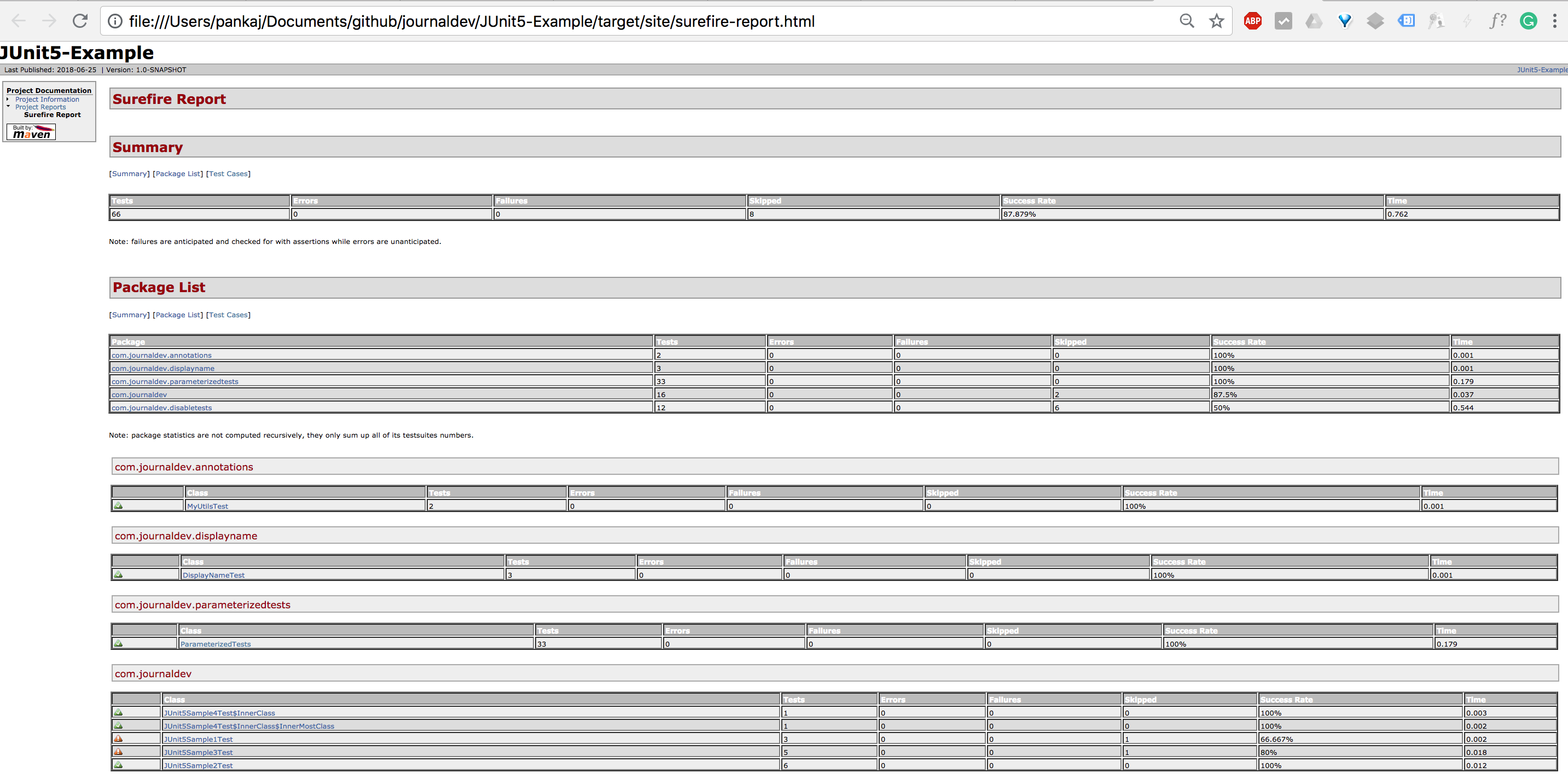
Open the surefire-report.html file in the browser. You will get an output like below image.
Matching infrastructure at centron
Java applications in continuous operation: ccloud³ VMs from €3.11 per month with full root access, billed by the hour. Rent a cloud server →
Information Provided by JUnit HTML Reports
Some of the useful information we get from JUnit HTML report are:
- Test Packages and Classes
- Test Methods names from specific classes
- Failure tests or skipped tests with reason
- Execution time taken by each method
Summary
TestNG supports built-in HTML report generation whereas JUnit HTML reports are generated by maven surefire plugin and we have to execute an additional command for it. However, JUnit HTML reports look much better when compared to TestNG HTML reports.
Test your setup on ccloud³
Sign up for ccloud³ and receive €200 starting credit for your project.