Python io module allows us to manage the file-related input and output operations. The advantage of using the IO module is that the classes and functions available allows us to extend the functionality to enable writing to the Unicode data.
Python IO Module
There are many ways in which we can use the io module to perform stream and buffer operations in Python. We will demonstrate a lot of examples here to prove the point. Let’s get started.
Python BytesIO
Just like what we do with variables, data can be kept as bytes in an in-memory buffer when we use the io module’s Byte IO operations. Here is a sample program to demonstrate this:
import io
stream_str = io.BytesIO(b"JournalDev Python: \x00\x01")
print(stream_str.getvalue())
Let’s see the output for this program:
sh-3.2$ python io_bytes.py
JournalDev Python:
sh-3.2$
The getvalue() function just takes the value from the Buffer as a String.
Python StringIO
We can even use StringIO as well which is extremely similar in use to BytesIO. Here is a sample program:
import io

data = io.StringIO()
data.write('JournalDev: ')
print('Python.', file=data)

print(data.getvalue())

data.close()
Let’s see the output for this program:
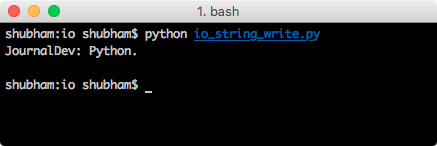
Notice that we even closed the buffer after we’re done with the buffer. This helps save buffer memory as they store data in-memory. Also, we used the print method with an optional argument to specify an IO stream of the variable, which is perfectly compatible with a print statement.
Reading using StringIO
Once we write some data to the StringIO buffer, we can read it as well. Let’s look at a code snippet:
import io

input = io.StringIO('This goes into the read buffer.')
print(input.read())
Let’s see the output for this program:
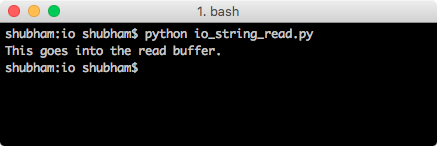
Reading file using StringIO
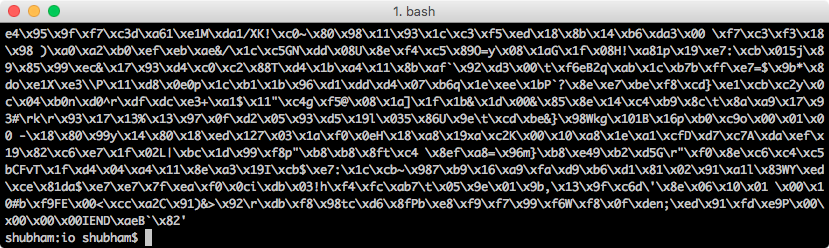
It is also possible to read a file and stream it over a network as Bytes. The io module can be used to convert a media file like an image to be converted to bytes. Here is a sample program:
import io

file = io.open("whale.png", "rb", buffering = 0)
print(file.read())
Let’s see the output for this program:
Matching infrastructure at centron
Scripts and services eventually need an environment that keeps running: ccloud³ VMs from €3.11 per month, billed by the hour. Rent a cloud server →
io.open() vs os.open()
The io.open() function is a much preferred way to perform I/O operations as it is made as a high-level interface to peform file I/O. It wraps the OS-level file descriptor in an object which we can use to access the file in a Pythonic way. The os.open() function takes care of the lower-level POSIX syscall. It takes input POSIX based arguments and returns a file descriptor which represents the opened file. It does not return a file object; the returned value will not have read() or write() functions. Overall, io.open() function is just a wrapper over os.open() function. The os.open() function just also sets default config like flags and mode too while io.open() doesn’t to it and depends on the values passed to it.
Conclusion - BytesIO and StringIO
In this lesson, we studied simple operations of python IO module and how we can manage the Unicode characters with BytesIO as well.
Test your setup on ccloud³
Sign up for ccloud³ and receive €200 starting credit for your project.